Alphacoeur
A private voice assistant whose AI runs on your device.
Download on the App Store Download for Windows
Available on the App Store for iPhone, iPad and Mac: download Alphacoeur. Open in 170+ countries, including the whole European Union. Alphacoeur is also available on Mac and on Windows (Microsoft Store); Android is next.
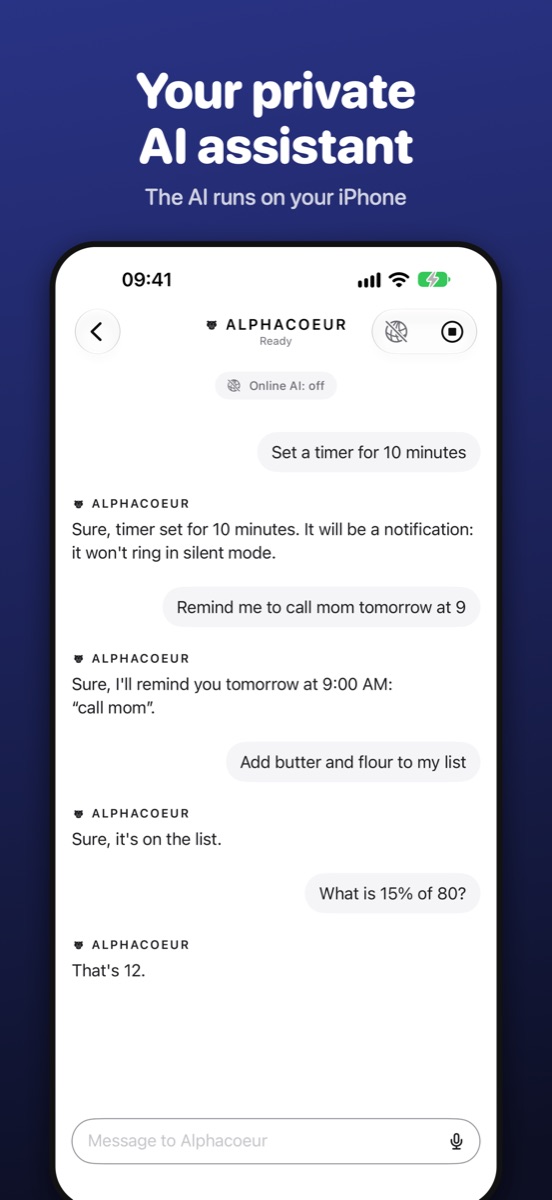
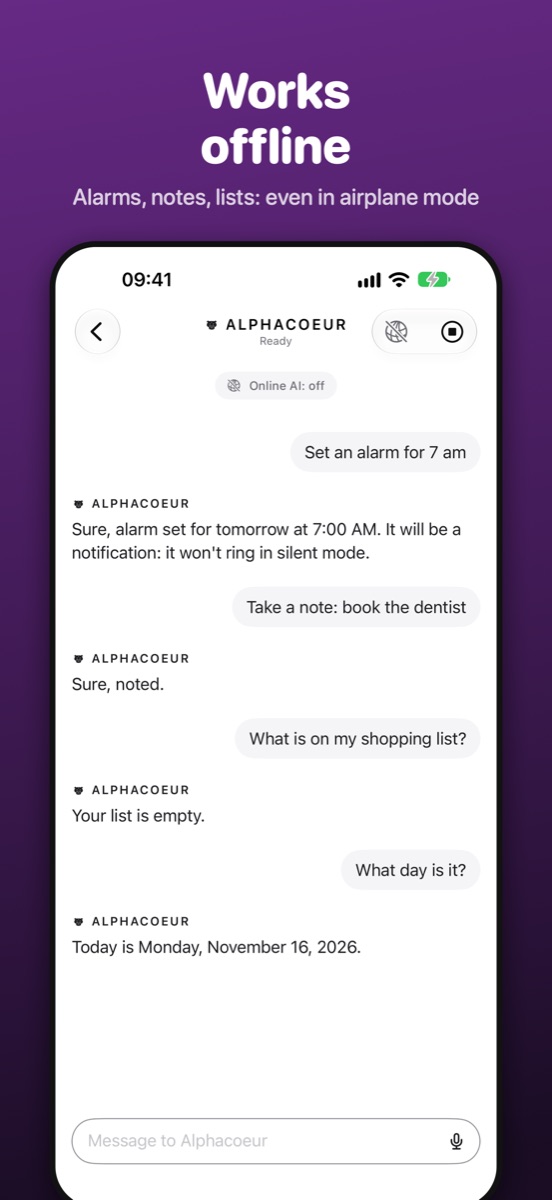
Notes, shopping list, memory, timers, reminders, calculations, recipes, weather and conversation: Alphacoeur answers with its own AI brain, installed on your device, and works even offline once that brain is downloaded. The microphone is never required: everything can be typed.
Privacy
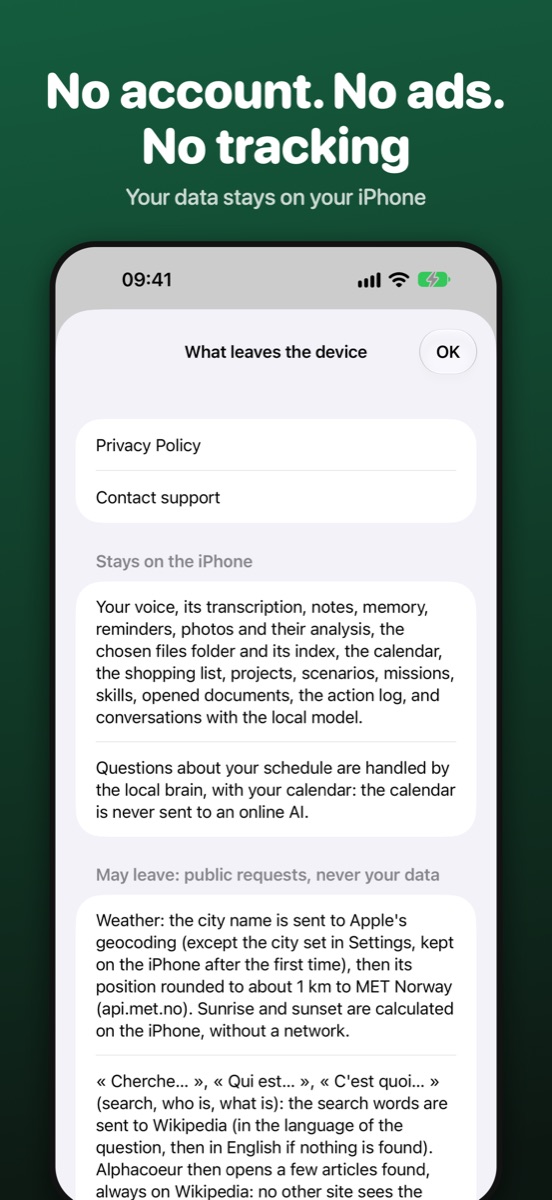
The publisher of Alphacoeur collects no data: no account, no ads, no tracking, no statistics. What you say and type stays on your device (or on your team's server). When an answer needs the Internet (weather, Wikipedia), only the necessary request goes to the relevant public service, stripped of anything about you.
Where to get it
- iPhone and iPad: App Store — available, including the European Union
- Mac: available on the Mac App Store
- Android: Google Play — coming soon
- Windows: available on the Microsoft Store
Free to download, with an optional in-app subscription. Emergency, health and privacy features are always free.
For teams: Alphacoeur Server
A Windows PC at the office runs Alphacoeur's brain for the whole team. Phones, tablets and computers connect to it over the local network, with a QR code. Conversations never leave the office.
Turning on server mode
On which devices? Server mode is available today on Windows PCs (Windows 10 version 2004 or later, Windows 11, Windows Server 2022 / 2025 with Desktop Experience). Mac with Apple silicon: coming soon, in the same app. Phones and tablets (iPhone, iPad, Android) cannot be servers: they connect to a server.
On the computer that will be the server:
- Open Alphacoeur › Settings › Server mode, then tap “Turn on server mode”.
- Subscription: pick the tier; payment goes through the store (Microsoft Store on the PC; otherwise “Subscribe from my phone”).
- Brain download: the best brain for this computer downloads and installs on its own (size shown first).
- QR code: a QR code and a 6-digit code appear to connect the first device.
On phones, tablets and other computers: Alphacoeur › Settings › Connect to a server, on the same network (Wi‑Fi or cable). Scan the QR code, or type the 6-digit code and check that the fingerprint matches the one on the server. To disconnect: same screen, “Remove this server”; the device then goes back to its own brain.
Turning server mode off: on the server, Settings › Server mode › “Turn off server mode”. Connected devices go back to their own brain. Remember to cancel the subscription in the store; to erase everything from the PC (accounts, memory, log): “Installer-Alphacoeur.cmd /desinstaller /tout”.
More power?
Alphacoeur's brain runs on the device: its size depends on the device's memory. The more memory, the bigger the brain, and the richer and more accurate the answers. Alphacoeur picks the best brain that fits on the device on its own.
For more powerful answers: install Alphacoeur on a more powerful computer, at home or at the office, turn on server mode, then connect your phones, tablets and computers to it. They then use that computer's big brain, over your local network: nothing goes to the Internet. Guide: setting up server mode.
| Device memory | Brain (model size) |
|---|---|
| 3 GB | 0.6B |
| 6 GB | 1.7B |
| 8 GB | 4B |
| 12 GB or more | 8B |
| PC with 16 GB + 12 GB graphics card | 14B |
| Server with 64 to 96 GB | 80B |
| Server with 256 GB or more | 235B and more |
Indicative guide: the exact choice also depends on the graphics card, free disk space and the brains available in the catalog at installation time.
Help
Alphacoeur gives general health pointers and does not replace a doctor, a pharmacist or emergency services. In an emergency, call your local emergency number (112 in Europe).
Publisher: Barth · Updated: November 16, 2026